
Create a bundle
Go to Components > Virtuemart > Custom Fields and press New. Then as Custom Field Type select “Plug-ins”.
Set Cart Attribte to No and Cart Input to No. Fill in the rest fields till the end of the page.
In the “Select a plug-in” select “Product Bundles”
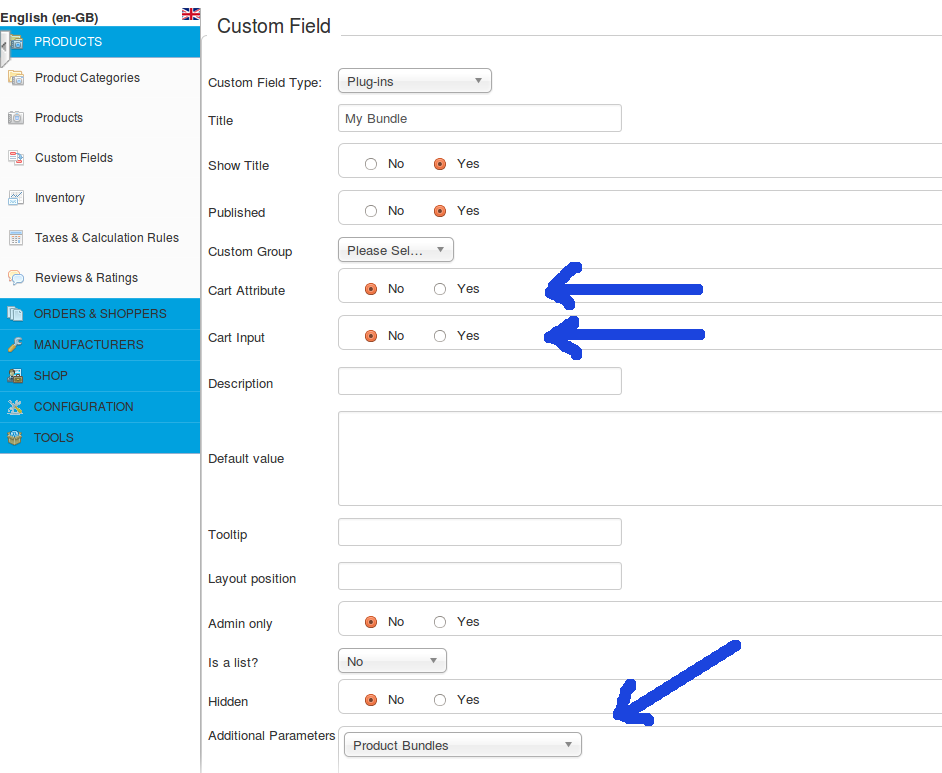
After selecting the plugin type, the parameters of that plugin will be loaded.
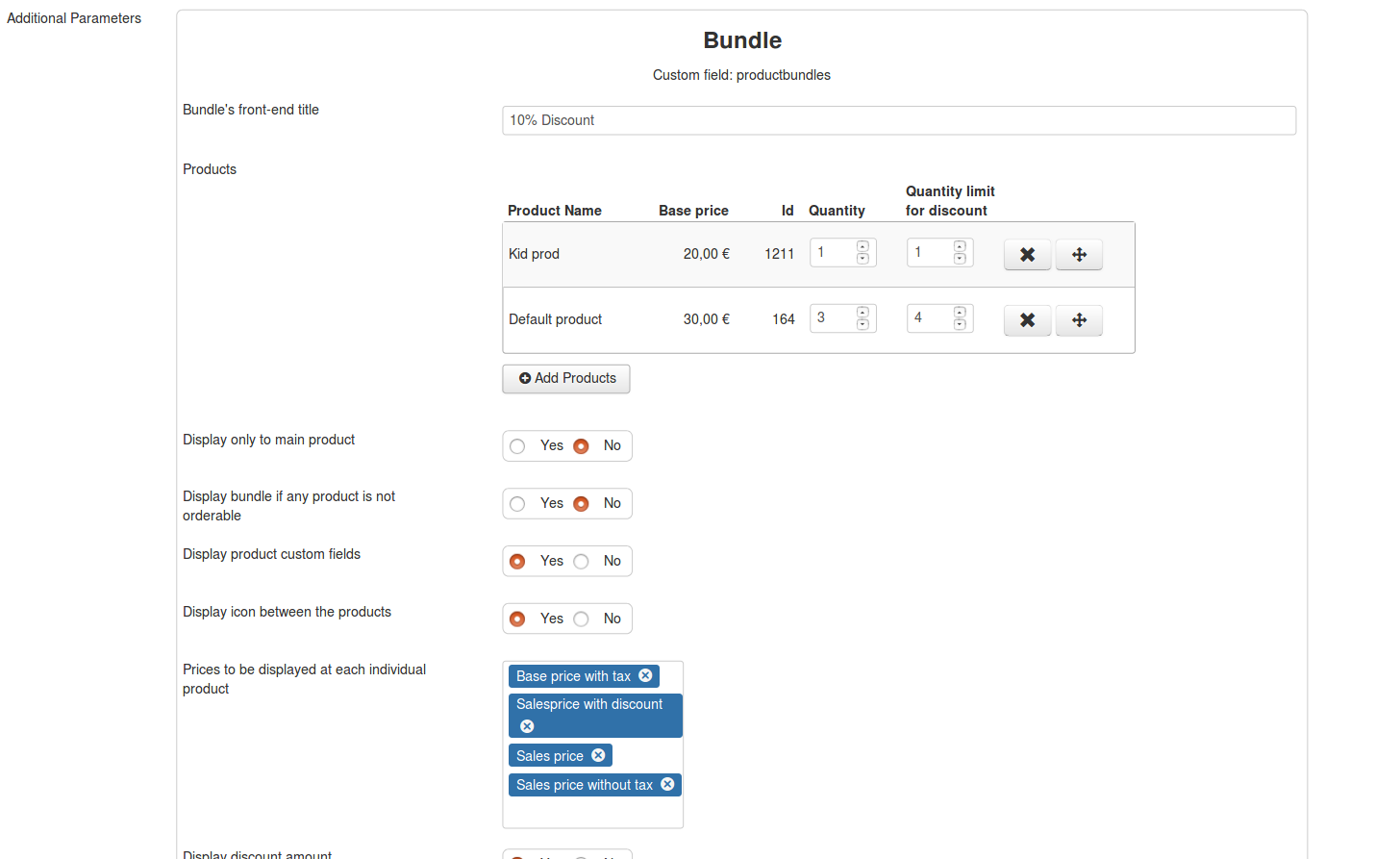
The correct configuration of the plug-in is essential to the plug-in's behavior. So it follows an explanation of the settings found here.
- Bundle's front-end title: The title that will be displayed at the top of the bundle
- Products: The products that consist the bundle. You can add, delete and order the products you want to use. You can add the products from here or by adding that custom field directly at each product that conisists the bundle.
Here you can set some additional parameters for each product :
1. Quantity : Refers the the quantity that each product will have within the bundle
2. Quantity limit for discount : Some users could exploit the bundle discount and buy the products included in the bundle, in big quantities. You can limit the quantity of each product that could be bought in discounted price, in a session. - Display only to main product: Main product is considered the 1st product of the bundle. If you enable this setting, the bundle will be displayed only to that product's page. It is usefull when you want the user to buy a main product with auxiliaries.
- Display bundle if any product is not orderable: There are cases when a product of a bundle cannot be ordered. The reasons can vary from being out of stock to having no price. This setting will define if the bundle will be displayed in case a product is missing.
- Display product custom fields: Display or not the custom fields of each product
- Display icon between the products: Display or not separator icons between the products.
- Price to be displayed at each individual product: The price that you will select here should be enabled in the VM configuration
- Display discount amount: The discount should be enabled also from the VM configuration
The next settings regard the discount of the bundle. For each bundle a new calculation rule will be created. So what actually happens here, is the configuration of that Calc. Rule.
- Type of discount: The type of calc. rule
- Math Operation: The math operator of the calc. rule
- Discount Value: The amount of the discount. Enter the number that will be used for discount e.g. 25 for 25%