
Create your Custom fields in Virtuemart
Go to Components > Virtuemart > Custom Fields and press New. Then as Custom Field Type select “Plug-ins”. Fill in the rest fields till the end of the page.
The Is a list field has to be disabled
If you want your custom field to be selectable both the Cart Attribute and the Cart Input settings have to be set to Yes.
For static/non-selectable custom fields, set them to No.
In the “Select a plug-in” select “Custom Fields For All”
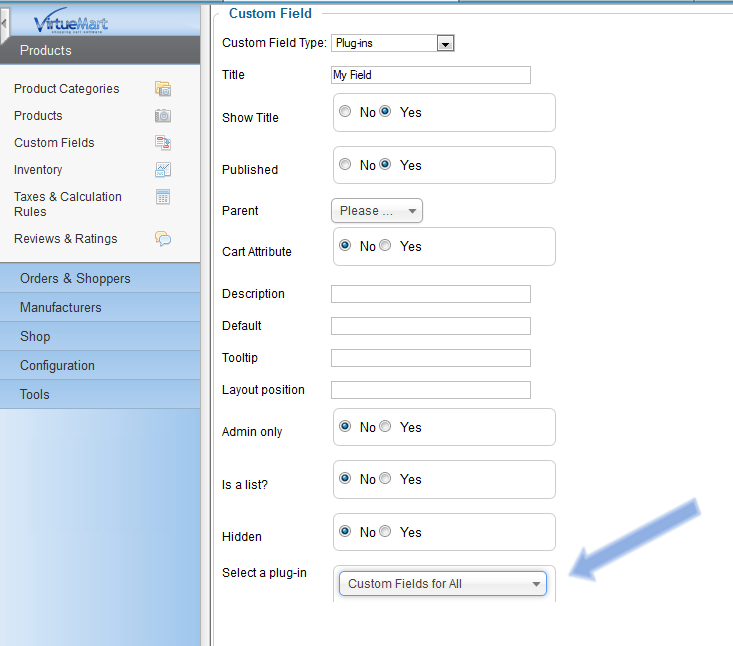
After selecting the plugin type, the parameters of that plugin will be loaded.
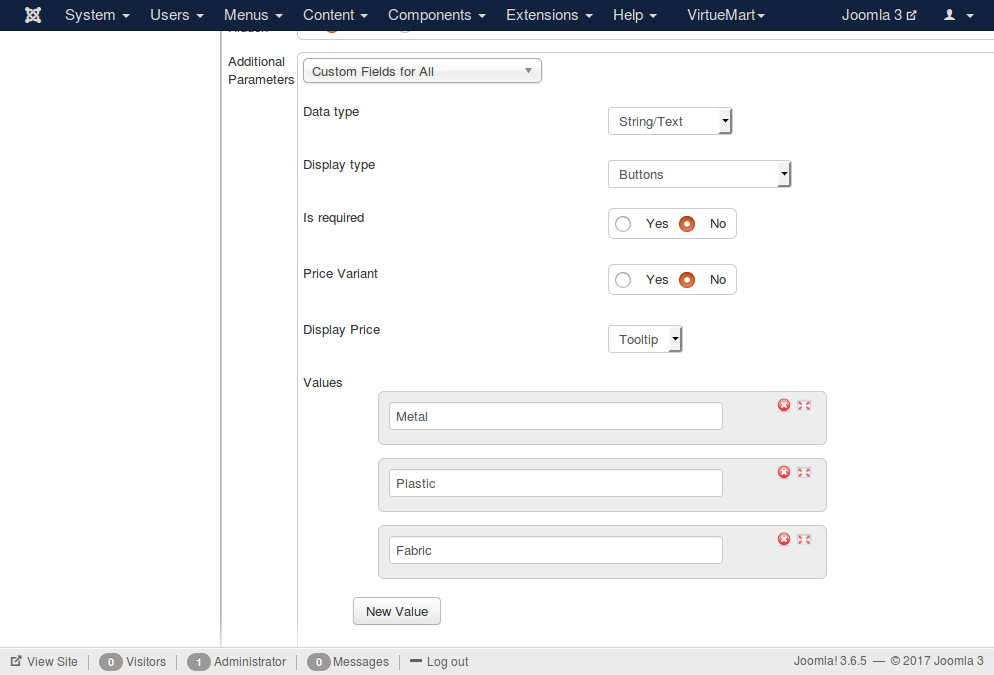
The correct configuration of the plug-in is essential to the plug-in's behavior in the back-end and the front-end of your site. So it follows an explanation of the settings found here.
- Data type: This is used to validate that the inserted data will be of a specific type.
- String/Text allows any input
- Color Hex. (Hexadecimal) allows only colors in hexadecimal format.
If you select this, a color picker popup will be displayed when you will try to insert a new color.
Also beyond the color value, you will be able to set a label/caption for each color value. - Integer Number allows only integers e.g. 10
- Float Number allows decimal numbers e.g. 10.45
- Display type: It defines how the custom field will be displayed in the front-end of the site i.e. Buttons ,Color Buttons, Drop-down lists, etc.
- Required: Leaves the field without selection and prompts the user to select an option if he/she tries to add the product to the cart.
- Price Variant: Set this to Yes only if your custom field values will affect the price of the product.
- Display Price : This setting has meaning only if the custom field is price variant.
It indicates how the price of each custom value will be displayed in the front-end of the site. - Values : This section displays all the values of that custom field. You can insert the values you intent to use now or later from within the product form.
If you want to insert hex. color values. You better first save your custom field and then insert the values. This way you will be able to use the color picker popup.
If you use that custom field together with our Stockable Custom Fields plug-in, then you better enable the Is required setting. This setting will load the custom fields without any default selection and the proper variation will be loaded after something is selected. Also you should disable the "Cart Input" and the "Cart Attribute" parameters.